EBS R12.1.2 is released and much awaited gap in the OTL and Absence Management product is closed in the current release.
OTL timecard is integrated with the SSHR Absence Management, with this new functionality Absence entered in the Oracle Core HR/ ESS or MSS will be populated in OTL Timecard.Similarly Absence time entered in OTL can be viewed in Core HR and SSHR. This new functionality helps to maintain the data integrity and this new functionality also eliminates much of the custom work that need to be done by the consultants to validate the time entered in OTL against the Absence Management
To understand how to setup Absence Management refer the blog http://ramesh-oraclehrms.blogspot.com/2007/07/leave-management.html
Showing posts with label OTL. Show all posts
Showing posts with label OTL. Show all posts
Saturday, January 2, 2010
Sunday, February 22, 2009
Archiving OTL Timecard
The Timecard archive process in OTL helps to archive the timecard which are no longer needed and to improve performance of the OTL. Once archived the timecard summary information is available for the users but not the detailed view. Users will not be able to edit or modify any details of the timecard
Following are the process that need to be performed for the archiving the OTL timecard
1) Setup following profile option
Note: Make sure not to select too much data at once, the process may fail.
If the process fails the data can be restored using the 'Undo Data Set process'
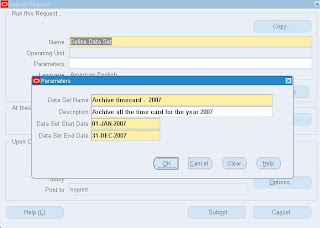
3) Next step in the archiving process is run 'Validate Data Set Process' - This process checks for error on the timecards in the data set.This process returns a validation warning message if the process finds the timecard with the status: working, rejected, submitted, approved, or error.
Note:The validation process may encounter some errors during processing. To restrict the number of errors reported at one time, you can set the OTL: Max Errors in Validate Data Set profile option to a maximum number of errors. The process stops running when it reaches the number of errors you define.
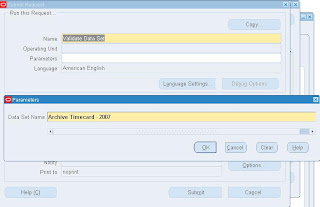
4) Final Step in the Timecard archiving is to run the 'Archive Data Set Process' - The archive process moves the defined data set of the validated timecard data from active tables in the OTL application to archive table.
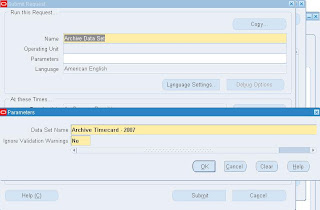
In my next blog I'll write the details of restoring the archived data back to OTL application
Try this out!
Following are the process that need to be performed for the archiving the OTL timecard
1) Setup following profile option
- OTL: Archive Restore Chunk Size
- OTL: Minimum Age of Data Set for Archiving
- OTL: Max Errors in Validate Data Set
Note: Make sure not to select too much data at once, the process may fail.
If the process fails the data can be restored using the 'Undo Data Set process'

3) Next step in the archiving process is run 'Validate Data Set Process' - This process checks for error on the timecards in the data set.This process returns a validation warning message if the process finds the timecard with the status: working, rejected, submitted, approved, or error.
Note:The validation process may encounter some errors during processing. To restrict the number of errors reported at one time, you can set the OTL: Max Errors in Validate Data Set profile option to a maximum number of errors. The process stops running when it reaches the number of errors you define.

4) Final Step in the Timecard archiving is to run the 'Archive Data Set Process' - The archive process moves the defined data set of the validated timecard data from active tables in the OTL application to archive table.

In my next blog I'll write the details of restoring the archived data back to OTL application
Try this out!


Sunday, August 17, 2008
Adding Cost Center value to the OTL Timecard
The common requirement in any timecard configuration is to have a cost center field to charge the time against. By default in OTL Oracle provides the cost center field but for displaying the values in the Timecard you need to configure the ltd file and create a View to hold the cost center value
Following code can be used to create the view
CREATE OR REPLACE FORCE VIEW HXC_CUI_CUSTOM9_V ( display_value ,value ) AS select fv.flex_value'-'fv.DESCRIPTION display_value, to_char(flex_value_id) value from fnd_flex_values_vl fv, fnd_flex_value_sets fvs where fv.flex_value_set_id = fvs.flex_value_set_id and fvs.flex_value_set_name = 'GL_COA_COST_CENTER'
Following are the three layout needed to be modified
Payroll layout - hxczzhxclayt0000.ldt
Payroll Review page - hxczzhxclayt0005.ldt
Payroll Confirmation page - hxczzhxclayt0001.ldt
Replace the cost center segment with the below code
Modify the Payroll layout - hxczzhxclayt0000.ldt
BEGIN HXC_LAYOUT_COMPONENTS "Payroll Timecard Layout - Cost Center"OWNER = "CUSTOM"COMPONENT_VALUE = "COSTCENTER"REGION_CODE = "HXC_CUI_TIMECARD"REGION_CODE_APP_SHORT_NAME = "HXC"ATTRIBUTE_CODE = "HXC_TIMECARD_COST_CENTER"ATTRIBUTE_CODE_APP_SHORT_NAME = "HXC"SEQUENCE = "190"COMPONENT_DEFINITION = "CHOICE_LIST"RENDER_TYPE = "WEB"PARENT_COMPONENT ="NEC Payroll Timecard Layout - Day Scope Building blocks for worker timecard matrix"LAST_UPDATE_DATE = "2004/05/24"
BEGIN HXC_LAYOUT_COMP_QUALIFIERS "NEC Payroll Timecard Layout - Cost Center"OWNER = "CUSTOM"QUALIFIER_ATTRIBUTE_CATEGORY = "CHOICE_LIST"QUALIFIER_ATTRIBUTE1 = "Custom9VO" ########Changed to Custm9VO ##############QUALIFIER_ATTRIBUTE4 = "N"QUALIFIER_ATTRIBUTE8 = "DisplayValue"QUALIFIER_ATTRIBUTE9 = "Value#NUMBER"
QUALIFIER_ATTRIBUTE10 ="oracle.apps.hxc.selfservice.timecard.server.Custom9VO" ########Changed to Custm9VO ##############
QUALIFIER_ATTRIBUTE11 = "TIMECARD_BIND_END_DATETIMECARD_BIND_END_DATE"QUALIFIER_ATTRIBUTE17 = "OraTableCellText"QUALIFIER_ATTRIBUTE20 = "N"QUALIFIER_ATTRIBUTE21 = "Y"QUALIFIER_ATTRIBUTE22 = "L"QUALIFIER_ATTRIBUTE25 = "FLEX"QUALIFIER_ATTRIBUTE26 = "Dummy Cost Context"QUALIFIER_ATTRIBUTE27 = "Attribute2"LAST_UPDATE_DATE = "2004/05/24"END HXC_LAYOUT_COMP_QUALIFIERS
END HXC_LAYOUT_COMPONENTS
Modify the Payroll Review page - hxczzhxclayt0005.ldt
BEGIN HXC_LAYOUT_COMPONENTS "Payroll Review Layout - Cost Center" OWNER = "CUSTOM" COMPONENT_VALUE = "COSTCENTER" REGION_CODE = "HXC_CUI_TIMECARD" REGION_CODE_APP_SHORT_NAME = "HXC" ATTRIBUTE_CODE = "HXC_TIMECARD_COST_CENTER" ATTRIBUTE_CODE_APP_SHORT_NAME = "HXC" SEQUENCE = "160" COMPONENT_DEFINITION = "CHOICE_LIST" RENDER_TYPE = "WEB" PARENT_COMPONENT = "NEC Payroll Review Layout - Day building blocks - matrix layout" LAST_UPDATE_DATE = "2004/05/24" BEGIN HXC_LAYOUT_COMP_QUALIFIERS "NEC NEC Payroll Review Layout - Cost Center" OWNER = "CUSTOM" QUALIFIER_ATTRIBUTE_CATEGORY = "CHOICE_LIST" QUALIFIER_ATTRIBUTE1 = "Custom9VO" #QUALIFIER_ATTRIBUTE8 = "DisplayValue" #QUALIFIER_ATTRIBUTE9 = "Value#NUMBER" QUALIFIER_ATTRIBUTE10 = "oracle.apps.hxc.selfservice.timecard.server.Custom9VO" #QUALIFIER_ATTRIBUTE11 = "TIMECARD_BIND_END_DATETIMECARD_BIND_END_DATE" #QUALIFIER_ATTRIBUTE17 = "OraTableCellText" QUALIFIER_ATTRIBUTE20 = "N" QUALIFIER_ATTRIBUTE21 = "Y" QUALIFIER_ATTRIBUTE22 = "L" QUALIFIER_ATTRIBUTE25 = "FLEX" QUALIFIER_ATTRIBUTE26 = "Dummy Cost Context" QUALIFIER_ATTRIBUTE27 = "Attribute2" QUALIFIER_ATTRIBUTE30 = "Y" LAST_UPDATE_DATE = "2004/05/24" END HXC_LAYOUT_COMP_QUALIFIERS END HXC_LAYOUT_COMPONENTS
Modify Payroll Confirmation page - hxczzhxclayt0001.ldt
BEGIN HXC_LAYOUT_COMPONENTS "Payroll Confirmation Layout - Cost Center" OWNER = "CUSTOM" COMPONENT_VALUE = "COSTCENTER" REGION_CODE = "HXC_CUI_TIMECARD" REGION_CODE_APP_SHORT_NAME = "HXC" ATTRIBUTE_CODE = "HXC_TIMECARD_COST_CENTER" ATTRIBUTE_CODE_APP_SHORT_NAME = "HXC" SEQUENCE = "210" COMPONENT_DEFINITION = "CHOICE_LIST" RENDER_TYPE = "WEB" PARENT_COMPONENT = "NEC Payroll Confirmation Layout - Day Scope Building blocks for worker timecard matrix" LAST_UPDATE_DATE = "2004/05/24" BEGIN HXC_LAYOUT_COMP_QUALIFIERS "NEC NEC Payroll Confirmation Layout - Cost Center" OWNER = "CUSTOM" QUALIFIER_ATTRIBUTE_CATEGORY = "CHOICE_LIST" QUALIFIER_ATTRIBUTE1 = "Custom9VO" #QUALIFIER_ATTRIBUTE8 = "DisplayValue" #QUALIFIER_ATTRIBUTE9 = "Value#NUMBER" QUALIFIER_ATTRIBUTE10 = "oracle.apps.hxc.selfservice.timecard.server.Custom9VO" #QUALIFIER_ATTRIBUTE11 = "TIMECARD_BIND_END_DATETIMECARD_BIND_END_DATE" #QUALIFIER_ATTRIBUTE17 = "OraTableCellText" QUALIFIER_ATTRIBUTE20 = "N" QUALIFIER_ATTRIBUTE21 = "Y" QUALIFIER_ATTRIBUTE22 = "L" QUALIFIER_ATTRIBUTE25 = "FLEX" QUALIFIER_ATTRIBUTE26 = "Dummy Cost Context" QUALIFIER_ATTRIBUTE27 = "Attribute2" QUALIFIER_ATTRIBUTE30 = "Y" LAST_UPDATE_DATE = "2004/05/24" END HXC_LAYOUT_COMP_QUALIFIERS END HXC_LAYOUT_COMPONENTS
Following code can be used to create the view
CREATE OR REPLACE FORCE VIEW HXC_CUI_CUSTOM9_V ( display_value ,value ) AS select fv.flex_value'-'fv.DESCRIPTION display_value, to_char(flex_value_id) value from fnd_flex_values_vl fv, fnd_flex_value_sets fvs where fv.flex_value_set_id = fvs.flex_value_set_id and fvs.flex_value_set_name = 'GL_COA_COST_CENTER'
Following are the three layout needed to be modified
Payroll layout - hxczzhxclayt0000.ldt
Payroll Review page - hxczzhxclayt0005.ldt
Payroll Confirmation page - hxczzhxclayt0001.ldt
Replace the cost center segment with the below code
Modify the Payroll layout - hxczzhxclayt0000.ldt
BEGIN HXC_LAYOUT_COMPONENTS "Payroll Timecard Layout - Cost Center"OWNER = "CUSTOM"COMPONENT_VALUE = "COSTCENTER"REGION_CODE = "HXC_CUI_TIMECARD"REGION_CODE_APP_SHORT_NAME = "HXC"ATTRIBUTE_CODE = "HXC_TIMECARD_COST_CENTER"ATTRIBUTE_CODE_APP_SHORT_NAME = "HXC"SEQUENCE = "190"COMPONENT_DEFINITION = "CHOICE_LIST"RENDER_TYPE = "WEB"PARENT_COMPONENT ="NEC Payroll Timecard Layout - Day Scope Building blocks for worker timecard matrix"LAST_UPDATE_DATE = "2004/05/24"
BEGIN HXC_LAYOUT_COMP_QUALIFIERS "NEC Payroll Timecard Layout - Cost Center"OWNER = "CUSTOM"QUALIFIER_ATTRIBUTE_CATEGORY = "CHOICE_LIST"QUALIFIER_ATTRIBUTE1 = "Custom9VO" ########Changed to Custm9VO ##############QUALIFIER_ATTRIBUTE4 = "N"QUALIFIER_ATTRIBUTE8 = "DisplayValue"QUALIFIER_ATTRIBUTE9 = "Value#NUMBER"
QUALIFIER_ATTRIBUTE10 ="oracle.apps.hxc.selfservice.timecard.server.Custom9VO" ########Changed to Custm9VO ##############
QUALIFIER_ATTRIBUTE11 = "TIMECARD_BIND_END_DATETIMECARD_BIND_END_DATE"QUALIFIER_ATTRIBUTE17 = "OraTableCellText"QUALIFIER_ATTRIBUTE20 = "N"QUALIFIER_ATTRIBUTE21 = "Y"QUALIFIER_ATTRIBUTE22 = "L"QUALIFIER_ATTRIBUTE25 = "FLEX"QUALIFIER_ATTRIBUTE26 = "Dummy Cost Context"QUALIFIER_ATTRIBUTE27 = "Attribute2"LAST_UPDATE_DATE = "2004/05/24"END HXC_LAYOUT_COMP_QUALIFIERS
END HXC_LAYOUT_COMPONENTS
Modify the Payroll Review page - hxczzhxclayt0005.ldt
BEGIN HXC_LAYOUT_COMPONENTS "Payroll Review Layout - Cost Center" OWNER = "CUSTOM" COMPONENT_VALUE = "COSTCENTER" REGION_CODE = "HXC_CUI_TIMECARD" REGION_CODE_APP_SHORT_NAME = "HXC" ATTRIBUTE_CODE = "HXC_TIMECARD_COST_CENTER" ATTRIBUTE_CODE_APP_SHORT_NAME = "HXC" SEQUENCE = "160" COMPONENT_DEFINITION = "CHOICE_LIST" RENDER_TYPE = "WEB" PARENT_COMPONENT = "NEC Payroll Review Layout - Day building blocks - matrix layout" LAST_UPDATE_DATE = "2004/05/24" BEGIN HXC_LAYOUT_COMP_QUALIFIERS "NEC NEC Payroll Review Layout - Cost Center" OWNER = "CUSTOM" QUALIFIER_ATTRIBUTE_CATEGORY = "CHOICE_LIST" QUALIFIER_ATTRIBUTE1 = "Custom9VO" #QUALIFIER_ATTRIBUTE8 = "DisplayValue" #QUALIFIER_ATTRIBUTE9 = "Value#NUMBER" QUALIFIER_ATTRIBUTE10 = "oracle.apps.hxc.selfservice.timecard.server.Custom9VO" #QUALIFIER_ATTRIBUTE11 = "TIMECARD_BIND_END_DATETIMECARD_BIND_END_DATE" #QUALIFIER_ATTRIBUTE17 = "OraTableCellText" QUALIFIER_ATTRIBUTE20 = "N" QUALIFIER_ATTRIBUTE21 = "Y" QUALIFIER_ATTRIBUTE22 = "L" QUALIFIER_ATTRIBUTE25 = "FLEX" QUALIFIER_ATTRIBUTE26 = "Dummy Cost Context" QUALIFIER_ATTRIBUTE27 = "Attribute2" QUALIFIER_ATTRIBUTE30 = "Y" LAST_UPDATE_DATE = "2004/05/24" END HXC_LAYOUT_COMP_QUALIFIERS END HXC_LAYOUT_COMPONENTS
Modify Payroll Confirmation page - hxczzhxclayt0001.ldt
BEGIN HXC_LAYOUT_COMPONENTS "Payroll Confirmation Layout - Cost Center" OWNER = "CUSTOM" COMPONENT_VALUE = "COSTCENTER" REGION_CODE = "HXC_CUI_TIMECARD" REGION_CODE_APP_SHORT_NAME = "HXC" ATTRIBUTE_CODE = "HXC_TIMECARD_COST_CENTER" ATTRIBUTE_CODE_APP_SHORT_NAME = "HXC" SEQUENCE = "210" COMPONENT_DEFINITION = "CHOICE_LIST" RENDER_TYPE = "WEB" PARENT_COMPONENT = "NEC Payroll Confirmation Layout - Day Scope Building blocks for worker timecard matrix" LAST_UPDATE_DATE = "2004/05/24" BEGIN HXC_LAYOUT_COMP_QUALIFIERS "NEC NEC Payroll Confirmation Layout - Cost Center" OWNER = "CUSTOM" QUALIFIER_ATTRIBUTE_CATEGORY = "CHOICE_LIST" QUALIFIER_ATTRIBUTE1 = "Custom9VO" #QUALIFIER_ATTRIBUTE8 = "DisplayValue" #QUALIFIER_ATTRIBUTE9 = "Value#NUMBER" QUALIFIER_ATTRIBUTE10 = "oracle.apps.hxc.selfservice.timecard.server.Custom9VO" #QUALIFIER_ATTRIBUTE11 = "TIMECARD_BIND_END_DATETIMECARD_BIND_END_DATE" #QUALIFIER_ATTRIBUTE17 = "OraTableCellText" QUALIFIER_ATTRIBUTE20 = "N" QUALIFIER_ATTRIBUTE21 = "Y" QUALIFIER_ATTRIBUTE22 = "L" QUALIFIER_ATTRIBUTE25 = "FLEX" QUALIFIER_ATTRIBUTE26 = "Dummy Cost Context" QUALIFIER_ATTRIBUTE27 = "Attribute2" QUALIFIER_ATTRIBUTE30 = "Y" LAST_UPDATE_DATE = "2004/05/24" END HXC_LAYOUT_COMP_QUALIFIERS END HXC_LAYOUT_COMPONENTS
Saturday, July 26, 2008
Line Manager Time Entry funtionality
This post in the continuation of the Previous posts Various way of entering time into OTL
Oracle Time & Labor Line Manager functionality is available with the product out of Box, The User Function name is Timecard Mgr (Function -HXC_TIMECARDS_MGR).
This function is included in the Seeded Manager Self Service menu HR_LINE_MANAGER_ACCESS_V4.0
IMPORTANT CATCH
By default this function will allow the manager to enter his own time, which most of the customer wont prefer the Manager to put in his time in the same place where the Manager can enter time for his direct reports.
there is an very simple way to restrict Manager for entering his time using the Timecard Mgr function
we will be able to limit by setting an additional parameter on the Timecard Mgr function (Function - HXC_TIMECARDS_MGR). To limit the manager from entering their own data, the parameter - pManagerEnabled should be entered at the end of other parameters (connector is &) with an N being 'Not Enabled', and a Y equaling 'Enabled'.
Example - to disable Line Manager entry of their own time using the Line Manager functionality, the parameter is added as: &pManagerEnabled=N

Try this out
Oracle Time & Labor Line Manager functionality is available with the product out of Box, The User Function name is Timecard Mgr (Function -HXC_TIMECARDS_MGR).
This function is included in the Seeded Manager Self Service menu HR_LINE_MANAGER_ACCESS_V4.0
IMPORTANT CATCH
By default this function will allow the manager to enter his own time, which most of the customer wont prefer the Manager to put in his time in the same place where the Manager can enter time for his direct reports.
there is an very simple way to restrict Manager for entering his time using the Timecard Mgr function
we will be able to limit by setting an additional parameter on the Timecard Mgr function (Function - HXC_TIMECARDS_MGR). To limit the manager from entering their own data, the parameter - pManagerEnabled should be entered at the end of other parameters (connector is &) with an N being 'Not Enabled', and a Y equaling 'Enabled'.
Example - to disable Line Manager entry of their own time using the Line Manager functionality, the parameter is added as: &pManagerEnabled=N

Try this out
Saturday, July 5, 2008
OTL - Authorized Delegate
Authorized Delegate: This functionality is similar to the timekeeper functionality but has few difference
- Timekeeper uses the PUI where as Authorized Delegate uses Self Service
- Timekeeper can access the people who are assigned to the Timekeeper group where authorized Delegate is controlled by the HR:Security Profile
- Timekeeper has seeded responsibility where the authorized delegate the user must build the custom responsibility using the Seeded Menu 'Authorized Delegate Timecard Entry’
This functionality is good to use when a single person need to enter time for fewer number of employees, if there are more number of employees it is always advisable to use timekeeper
Try it out
Sunday, June 1, 2008
OTL Time Keeper
There are multiple ways you can enter time into OTL
Before starting the Timekeeper configuration , if you directly go the Responsibility OTL Super timekeeper and click the function timekeeper Entry you will get the following error msg,

The above error message will clearly tell you what are the setup steps you need to do to enable the Timekeeper
The first two steps are to be done in the OTL Application developer Responsibility
1. Timekeeper Misc Setup Items
2. Timekeeper Layout attribute
The third step should be done in the OTL super Timekeeper Responsibility
3. Timekeeper Group is created
The Forth step should be done in the System administrator, this step should be done at the user level and it is only for the super timekeeper
4 Profile OTL: Allow Change Group Timekeeper
I'll be explaining each of the above steps in detail in my next post
- Self Service time - employee entering his own time
- Line Manager time Entry - Manager Entering time for his direct reports
- Timestore Deposit API - Time import using the interface from the third party system
- Timekeeper - one person entering time for the group of employees based on the group assigned to them
- Authorized Delegate - One person entering time for the group of employees based on the security profile attached in the user/responsibility
Before starting the Timekeeper configuration , if you directly go the Responsibility OTL Super timekeeper and click the function timekeeper Entry you will get the following error msg,

The above error message will clearly tell you what are the setup steps you need to do to enable the Timekeeper
The first two steps are to be done in the OTL Application developer Responsibility
1. Timekeeper Misc Setup Items
2. Timekeeper Layout attribute
The third step should be done in the OTL super Timekeeper Responsibility
3. Timekeeper Group is created
The Forth step should be done in the System administrator, this step should be done at the user level and it is only for the super timekeeper
4 Profile OTL: Allow Change Group Timekeeper
I'll be explaining each of the above steps in detail in my next post
Subscribe to:
Posts (Atom)

 Posts
Posts

