EBS R12.1.2 is released and much awaited gap in the OTL and Absence Management product is closed in the current release.
OTL timecard is integrated with the SSHR Absence Management, with this new functionality Absence entered in the Oracle Core HR/ ESS or MSS will be populated in OTL Timecard.Similarly Absence time entered in OTL can be viewed in Core HR and SSHR. This new functionality helps to maintain the data integrity and this new functionality also eliminates much of the custom work that need to be done by the consultants to validate the time entered in OTL against the Absence Management
To understand how to setup Absence Management refer the blog http://ramesh-oraclehrms.blogspot.com/2007/07/leave-management.html
Showing posts with label R12. Show all posts
Showing posts with label R12. Show all posts
Saturday, January 2, 2010
Sunday, February 22, 2009
Archiving OTL Timecard
The Timecard archive process in OTL helps to archive the timecard which are no longer needed and to improve performance of the OTL. Once archived the timecard summary information is available for the users but not the detailed view. Users will not be able to edit or modify any details of the timecard
Following are the process that need to be performed for the archiving the OTL timecard
1) Setup following profile option
Note: Make sure not to select too much data at once, the process may fail.
If the process fails the data can be restored using the 'Undo Data Set process'
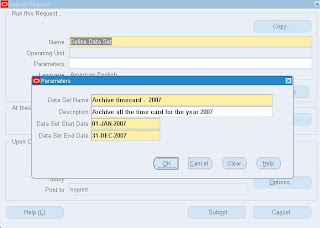
3) Next step in the archiving process is run 'Validate Data Set Process' - This process checks for error on the timecards in the data set.This process returns a validation warning message if the process finds the timecard with the status: working, rejected, submitted, approved, or error.
Note:The validation process may encounter some errors during processing. To restrict the number of errors reported at one time, you can set the OTL: Max Errors in Validate Data Set profile option to a maximum number of errors. The process stops running when it reaches the number of errors you define.
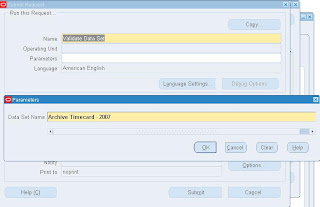
4) Final Step in the Timecard archiving is to run the 'Archive Data Set Process' - The archive process moves the defined data set of the validated timecard data from active tables in the OTL application to archive table.
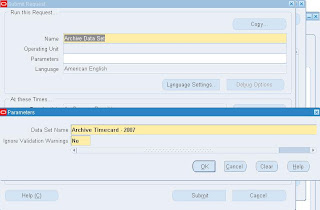
In my next blog I'll write the details of restoring the archived data back to OTL application
Try this out!
Following are the process that need to be performed for the archiving the OTL timecard
1) Setup following profile option
- OTL: Archive Restore Chunk Size
- OTL: Minimum Age of Data Set for Archiving
- OTL: Max Errors in Validate Data Set
Note: Make sure not to select too much data at once, the process may fail.
If the process fails the data can be restored using the 'Undo Data Set process'

3) Next step in the archiving process is run 'Validate Data Set Process' - This process checks for error on the timecards in the data set.This process returns a validation warning message if the process finds the timecard with the status: working, rejected, submitted, approved, or error.
Note:The validation process may encounter some errors during processing. To restrict the number of errors reported at one time, you can set the OTL: Max Errors in Validate Data Set profile option to a maximum number of errors. The process stops running when it reaches the number of errors you define.

4) Final Step in the Timecard archiving is to run the 'Archive Data Set Process' - The archive process moves the defined data set of the validated timecard data from active tables in the OTL application to archive table.

In my next blog I'll write the details of restoring the archived data back to OTL application
Try this out!


Sunday, October 12, 2008
R12 Maintain Employee Data using a Single Responsibility in Multi Business Group
There will be always a question from the customers who are in an Global environment (in an multi Business Group environment) " How to maintain employee data using a single responsibility"
---Yes this was a constraint in 11.5.10, now in R12 this is made possible. Now customers will be able to maintain employees using the single responsibility across business group.
This functionality is Out of box with the product.
To leverage this functionality following are the pre-requistes/ Setups
To leverage this functionality following are the pre-requistes/ Setups
- HR module should be in Multi Buisness Group Environment
- HR Organization hierarchy should be using Global hierarchy
- HR Security Profile should be defind using the Global Security Profile form
- Attach the global security profile to the HR: Security Profile at the Responsibility level
Once the above setup steps are completed, follow the below navigation
Global HRMS Manager > Maintaining Using Template > Maintain Employees
(M) View > find

Using the Find screen, In the Business Group Name field you will be able to select the Business group that you want to access the employee data and click find to retrieve the employee information.
Important Note: Using this method you will only be able to maintain the existing employee data. If you create any new employees using this responsibility, the employee data will be created in the default BG to which the responsibility is attached
Saturday, January 19, 2008
R12 Suitability Matching functionality
Suitability Matching Functionality is the new functionality available in both Employee and Manager Self Service.
To explain this is in a very common language - this function helps the employee to find the opportunity in the organization that suites his role and competency.The employee can compare the various competency that is desired and essential for a particular role
For the manager Self service this function helps them to find the employee / applicant based on the competency and the role
List of Options available in the Manager Self Service

In the manager Self Service lets take an example of searching the employee/contingent worker/an applicant based on the competency profile and View it in a Graph for analysing the competency for the Job
Start with the option 'Find Suitable People by Competency'
Add the list of competency that you want to search for

Once you select the continue button, you will be able to list of people that match your competency requirement

Click the button Graph people by Competency button that will help you out in the viewing the graph based on the Min , max and the personal proficiency level

Try this out!!!
To explain this is in a very common language - this function helps the employee to find the opportunity in the organization that suites his role and competency.The employee can compare the various competency that is desired and essential for a particular role
For the manager Self service this function helps them to find the employee / applicant based on the competency and the role
List of Options available in the Manager Self Service

In the manager Self Service lets take an example of searching the employee/contingent worker/an applicant based on the competency profile and View it in a Graph for analysing the competency for the Job
Start with the option 'Find Suitable People by Competency'
Add the list of competency that you want to search for

Once you select the continue button, you will be able to list of people that match your competency requirement

Click the button Graph people by Competency button that will help you out in the viewing the graph based on the Min , max and the personal proficiency level

Try this out!!!
Saturday, December 29, 2007
R12 Global Deployment functionality
It is a common Operation process in any industry to move people around or transfer employee’s temporary basis for a particular project or Assignment. Or transfer them permanently to a different country.
Though this functionality was available in 11i for the HR professionals to do it manually if the cross business group is enabled they can update organization and location in the assignment form, or another method of doing this is to terminate and hire the employee in the new business group.
Now in R12 this functionality has been made as a standard functionality in the Manager Self Service Responsibility Under the function 'Transfer'
Manager Self Service > Transfer

Though this functionality was available in 11i for the HR professionals to do it manually if the cross business group is enabled they can update organization and location in the assignment form, or another method of doing this is to terminate and hire the employee in the new business group.
Now in R12 this functionality has been made as a standard functionality in the Manager Self Service Responsibility Under the function 'Transfer'
Manager Self Service > Transfer

Select the employee you wanted to transfer, follow the wizard which will take you through complete process like new salary change, new direct report, New Location Change, Time card approver, work Schedule etc., finally you will receive a Review summary page where you can review and submit for the approval
Note: if you are a Oracle Payroll Customer you need to take necessary actions when changing the work location for the payroll Taxation
Try this out!!!
Subscribe to:
Posts (Atom)

 Posts
Posts


